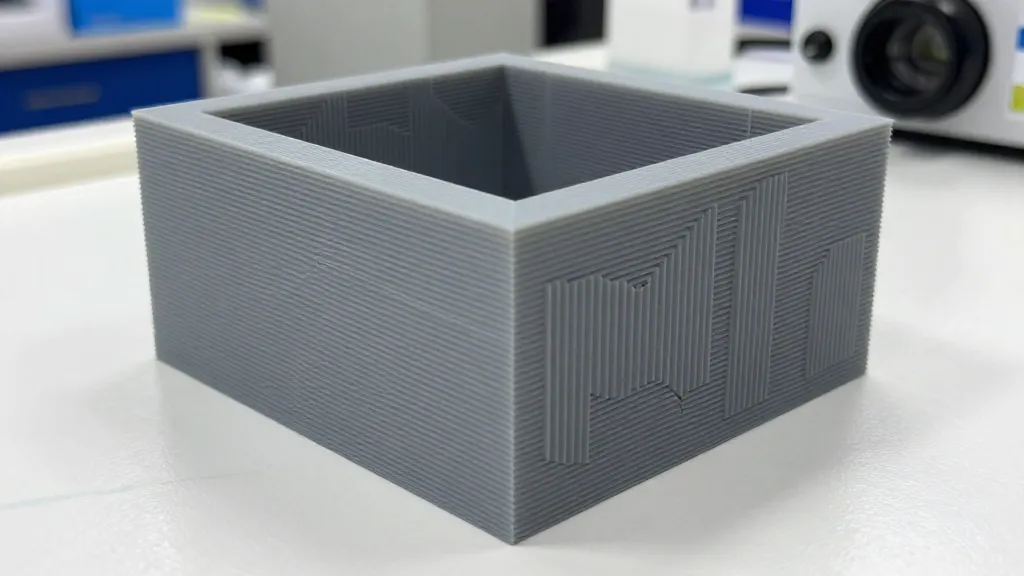
Achieving precise dimensions in 3D printing can be a challenge, especially when dealing with warping, stringing, or inconsistent layer adhesion. One effective strategy to improve dimensional accuracy is the outer wall before inner wall order. By printing outer walls first, you create a stable foundation that minimizes deformation and enhances structural integrity. This method is particularly beneficial for complex models where accuracy is critical.
The outer wall before inner wall order leverages thermal stability and reduces the risk of warping by allowing the outer structure to cool and solidify before inner layers are added. This approach also promotes better layer adhesion, ensuring that the final print maintains its intended shape and dimensions.
In this article, we explore how the outer wall before inner wall order impacts dimensional accuracy, how to adjust wall order settings in slicing software, and best practices for achieving consistent results. Whether you're a hobbyist or a designer, understanding these principles can significantly enhance the quality of your 3D prints.
Why Outer Walls Should Be Printed First
Printing outer walls before inner walls is a critical technique for enhancing the quality and reliability of 3D prints. This approach ensures that the outer structure is stabilized early in the printing process, reducing the risk of warping and improving dimensional accuracy. By prioritizing the outer walls, you create a more stable foundation for the rest of the print, which is essential for achieving consistent and precise results.
Thermal Stability and Warping Prevention
Printing outer walls first helps maintain thermal stability and prevents warping. As the outer shell solidifies, it acts as a thermal barrier, reducing heat loss from the inner layers. This gradual cooling process minimizes the risk of warping, which is a common issue in 3D printing, especially with materials like PLA and ABS. By stabilizing the outer structure early, the print bed remains more consistent, reducing the chance of deformation during the printing of inner walls.
Structural Integrity and Layer Adhesion
Structural integrity and layer adhesion are significantly improved when outer walls are printed first. The outer walls provide a solid base for subsequent layers, ensuring better adhesion and reducing the likelihood of layer separation. This method also allows the outer walls to solidify before the inner walls are printed, which helps maintain the overall shape of the model. By ensuring the outer walls are fully bonded to the print bed, you create a more robust and accurate final print, reducing the chances of surface defects or dimensional inaccuracies.
How to Adjust Wall Order in Slicing Software
Adjusting wall order in slicing software is a critical step for achieving better dimensional accuracy in 3D prints. Most slicing software, such as OrcaSlicer and PrusaSlicer, provides an option to change the wall order, allowing users to prioritize outer walls before inner walls. This setting ensures that the outer shell is printed first, which can significantly reduce warping and improve structural integrity. Understanding how to locate and adjust this setting is essential for users looking to refine their printing results.
- In OrcaSlicer, navigate to the 'Layer' settings and locate the 'Wall Order' option.
- Set the wall order to 'Outer Wall First' to ensure outer walls are printed before inner walls.
- For PrusaSlicer, the wall order setting is also found under the 'Layer' section.
- Some slicers may not offer a direct wall order option, so check for advanced settings or custom profiles.
In OrcaSlicer, the wall order setting can be found within the 'Layer' section of the software. Navigate to the 'Layer' settings, and look for the 'Wall Order' option. Setting this to 'Outer Wall First' ensures that the outermost walls are printed before the inner walls. This method helps maintain thermal stability and enhances the overall quality of the print.
The Impact of Wall Order on Dimensional Accuracy
Dimensional accuracy is a critical factor in 3D printing, especially for parts that require tight tolerances or precise fit. The order in which walls are printed significantly influences the final dimensions of the object, with printing outer walls first offering distinct advantages in maintaining accuracy and consistency.
Dimensional Accuracy in Complex Prints
Printing outer walls first reduces the risk of warping and improves the final part's dimensions. As outer walls solidify first, they form a stable foundation that prevents the inner walls from sagging or deforming during the printing process. This is particularly important in complex geometries where structural integrity is essential for the part to function correctly. By ensuring that the outer walls are fully set before printing the inner walls, the overall dimensional accuracy of the print is significantly enhanced.
Reproducibility and Consistency
Consistent wall order settings across multiple prints ensures reproducibility and accuracy. When the same wall order is applied to each print, it minimizes variations in the final dimensions, making it easier to achieve precise results in batch production. This is especially important for multi-part assemblies where each component must fit together with exact measurements. Maintaining a standardized wall order also helps in troubleshooting and refining the print process, as it reduces the impact of external factors on dimensional accuracy.
Best Practices for Wall Order in 3D Printing
Implementing the outer wall before inner wall order requires a strategic approach to ensure optimal print quality. Start by testing this setting with a calibration print to verify how the model behaves under real printing conditions. This allows you to identify any unexpected issues like warping or poor layer adhesion before committing to a full print. Calibration prints also help fine-tune other parameters such as temperature and cooling settings, which are essential for dimensional accuracy.
- Always test wall order settings with a calibration print to ensure the desired effect.
- Use a support structure for prints that require higher dimensional accuracy.
- Monitor the print temperature and bed adhesion to complement wall order settings.
- Adjust wall thickness and spacing to optimize the outer wall's structural role.
- For large prints, consider using a fan to cool outer walls first, which can help prevent warping.
When working on complex models that demand high precision, consider using a support structure. Supports can help maintain the shape of the outer walls during printing, especially in areas where the inner walls might otherwise cause instability. However, ensure that the supports are easily removable and do not interfere with the outer wall's structural integrity. This is particularly important for parts that are used in mechanical or load-bearing applications.
Comparing Wall Order Settings Across Slicers
Different 3D slicers handle wall order settings with varying levels of support and configuration requirements. Understanding how each slicer manages this feature helps users optimize dimensional accuracy and structural integrity in their prints.
| Slicer | Wall Order Setting | Configuration Complexity | Firmware Compatibility | Notes |
|---|---|---|---|---|
| OrcaSlicer | Clear 'Wall Order' setting | Low | Supported | Easy to adjust for most prints |
| PrusaSlicer | Similar setting | Moderate | Supported | Requires advanced settings for full control |
| Klipper-based | Not directly supported | High | Limited | Use custom profiles for wall order |
| Some firmware | Not supported | N/A | Not supported | Test with latest software for compatibility |
OrcaSlicer vs PrusaSlicer Wall Order Settings
OrcaSlicer provides a straightforward interface for adjusting wall order, allowing users to prioritize outer walls before inner walls with minimal effort. PrusaSlicer offers similar functionality but may require more in-depth configuration, especially when combining wall order with other advanced settings like infill patterns or support structures.
Slicer Compatibility and Firmware Considerations
Slicer compatibility with wall order settings can vary, particularly with firmware versions. Klipper-based slicers, for example, may lack direct wall order controls, necessitating the use of custom profiles to achieve the desired behavior. Users should always verify firmware compatibility and consult slicer documentation to ensure wall order settings are available and properly configured.
Troubleshooting Common Wall Order Issues
When troubleshooting wall order issues, start by examining the print for signs of warping or poor adhesion. If the outer walls are not forming properly, the issue may stem from incorrect wall order settings. Ensure the slicing software is configured to print outer walls first to maintain thermal stability and prevent warping. A calibration print can help identify if the wall order is causing structural inconsistencies.
- If warping occurs, double-check wall order settings and ensure the outer walls are printed first.
- If inner walls are not forming correctly, adjust the wall thickness and ensure sufficient adhesion.
- If the print is uneven or has visible layer lines, consider adjusting the wall order and cooling settings.
- For stringing issues, ensure outer walls are printed first and the fan is set to a moderate speed.
Frequently Asked Questions
What happens if I print inner walls before outer walls?
Printing inner walls first can lead to warping and reduced dimensional accuracy. Inner walls cool faster, increasing the risk of warping and affecting the outer wall's dimensional stability.
How can I check if my slicing software supports wall order settings?
Look for settings related to wall order or print sequence in your slicing software. OrcaSlicer and PrusaSlicer typically offer these options, while others may require manual adjustments.
Can wall order settings affect the final print's dimensional accuracy?
Yes, wall order settings significantly influence dimensional accuracy. Printing outer walls first helps maintain thermal stability and reduces warping, ensuring better dimensional precision.
What should I do if my print is still warping despite using wall order settings?
Ensure your printer's bed is level and the enclosure is properly heated. Adjusting retraction settings and using a brim or raft can also help reduce warping in complex prints.
Final Thoughts
Prioritizing outer walls in print order enhances dimensional accuracy and warping prevention. This approach ensures better structural integrity and layer adhesion, resulting in more precise prints.
To achieve optimal results, adjust your slicing software settings and consider firmware compatibility. Experiment with wall order settings to find the best balance for your specific prints.